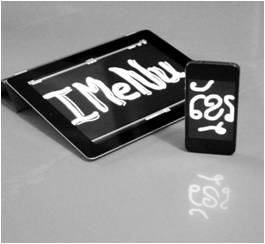
Here is the link to download Khmer Font for iDevice:
Khmer Font For: iPhone/iPod/iPad
KeyBoard For : iPhone/iPod
KeyBoard For : iPad
Note: Font must install first then keyboard!
Click Here to know more about how to install .deb into your iDevice!
Update: New version is out 1.0.2
Here is Khmer Font for: iPhone
Khmer Keyboard: iPhone
You can like our Facebook page , add us to your circle on Google+ or follow us on Twitter to keep yourself updated on all the latest from any gadget product!
Be our facebook's fan page!
Monday, January 23, 2012

Sunday, January 22, 2012
How to Manually Install DEB Files
How to Manually Install DEB File

While Cydia is a decent hub for all of the available jailbreak apps and utilities, there’s no arguing that dealing with the clunky package installer can be a bit cumbersome at times.
For folks that weren’t aware, you can manually install jailbreak apps and tweaks without ever opening Cydia. All you need is the .deb file of the package you want to install, and an FTP client like iPhone Explorer or Cyberduck…
It’s fairly likely that you’ve come across one of our posts in the past that discussed a tweak or app that wasn’t in Cydia for one reason or another. In this case, some developers provide a link to a downloadable .deb file.
Placing this file into the correct folder on your iDevice will automatically install the package, bypassing Cydia. This allows for much quicker package installations, and enables you to install multiple items (like themes) at a time.
This guide assumes you know how to SSH into your iDevice. If you need a refresher, check out our easy SSH tutorial.
Step 1. Launch your SFTP client (I’m using Cyberduck) and login. Navigate to/var/root/Media on your iDevice. If you don’t already have a Cydia folder there, make one.

Step 2. If you already had a Cydia folder, open it and find the AutoInstall folder. If you didn’t, just open your newly made Cydia folder and create another new folder entitled AutoInstall.
Step 3. Locate the .deb file(s) you’d like to install and place them in the AutoInstall folder. Once copying is complete, restart your iDevice — twice. After the 2nd restart, the new packages should show up on your springboard and in Cydia.
That’s all there is to it! The cool thing is, with apps like iFile, you can do this all on your phone with no need for a computer. Imagine having a .deb file for every one of your favorite packages, restoring would take a fraction of the time.
Spurce iDB
Saturday, January 14, 2012
How to Enable AutoCorrect Bar on iPhone, iPad, iPod Touch
This feature works through creating a bar on the top of the keyboard screen that shows you different corrected options for the words that you are writing in your text and these words comes down alphabetically for you to choose the right option.
You can like our Facebook page , add us to your circle on Google+ or follow us on Twitter to keep yourself updated on all the latest from any gadget product!
The devices that are supported by Autocorrect bar:
- iPhone 4S
- iPhone 4
- iPod touch 4
- iPad 1
- iPad 2

How to Enable Autocorrect bar on iPhone, iPad, iPod Touch?
- Step1- Connect the idevice that you have to the itunes and make a backup
- Step2- Download the application for the backup “ibackupBot- windows and mac” and install it on your computer
- Step3- Now comes the step where you choose your idevice from the list that appears on the left hand panel in the backup app
- Step4- Navigate to library/preferences/com.apple.keyboard.plist and then double click on the file to open
- Step5- Add the following key<key>keyboardautocorrectionlists</key> <string>YES</string>
- Step6- Close this file and then save it
- Step7- Now click on the restore icon in order to restore the backup file
- Step8- Your idevice now is going to restart.
You can like our Facebook page , add us to your circle on Google+ or follow us on Twitter to keep yourself updated on all the latest from any gadget product!
Tuesday, December 27, 2011
HOW TO JAILBREAK 5.0.1 UNTETHERED WITHOUT BASEBAND UPDATE
You can quickly access, download & install Corona 5.0.1 Untether (Chronic Dev team’s version, packaged in the Cydia store) for your iPhone 4, iPhone 4 (CDMA), iPhone 3GS, iPad 1, iPod Touch 4G & iPod Touch 3G *CURRENTLY RUNNING iOS 5.0.1* by following the steps below:
Open the Cydia app on your tethered jailbroken device**
Search for “Corona”
Hit the “Install” button (as shown in the screen grab below)

This package will allow your 5.0.1 device to install pod2g’s untethered exploits and reboot without requiring an external tool like redsn0w or sn0wbreeze, and without having to restore your device (so you get to keep all your apps, contacts, etc).
**Note: if you do not currently have access to the Cydia store on your 5.0.1 device, you can use the redsn0w 0.9.10 tool developed by the iPhone Dev team. It is exactly the same set of files as our Cydia package, but bundled with redsn0w for new jailbreak users and/or those who are not already running a tethered jailbreak:
Important Note: iPhone users, if you rely on unlock you MUST stay away from iOS 5.0.1 update, it will break your unlock as it will upgrade your iPhone baseband to one that can’t be unlocked. Dev-team will release Redsn0w 0.9.9 to let unlockers able to upgrade to iOS 5 with preserving the unlockable basebands.
Jailbreak iOS 5.0.1 – Supported devices :
iPod touch 3G
iPod touch 4G
iPad 1
iPhone3GS
iPhone4 (GSM)
iPhone4 (CDMA)
iPhone 4S – ?
iPad 2 – ?
HOW TO JAILBREAK 5.0.1 iPHONE 3GS UNTETHERED COMPLETE GUIDE:
1) Open RedSn0w tool and click “Extras” (Scroll down for link)

2) Click “Custom IPSW”

3) Select original iOS 5.0.1 and click “Open”

4) Waiting ……

5) OK. Custom IPSW created

6) Click “Pwned DFU”

7) Click “Next” and read information

 OK. Your device should now be in owned DFU mode…

9) Connect iPhone 3GS with iTUNES and click “OK”

10) ATTENTION. Click “ALT +Restore” ( Mac OS X) or “CTRL + Restore” ( Windows PC)

11) Select Custom IPSW (file “NO_BB……..” )

12) Click “Restore”

13) Waiting….

14) Waiting…. and Done.
Windows LINK
Mac LINK
… Jailbreak iOS 5 on iPhone 4, 3GS, iPod Touch 4G, 3G and iPad
If you have one of the A4 devices listed above and are not using iOS 5.0.1 yet, you can update your iOS version now (though you should not update to 5.0.2 when it is released, or you will lose your jailbreak) or you can wait a few days max for our Corona 5.0 Untether package, which will be available in the Cydia store upon release.
Apologies to those of you iPad 2 & iPhone 4S users who are waiting for an A5 jailbreak; we all (pod2g + everyone here at Chronic Dev) are still working feverishly ‘round the clock to get an untethered jailbreak into your hands as well, just as soon as we possibly can.
You can like our Facebook page , add us to your circle on Google+ or follow us on Twitter to keep yourself updated on all the latest from any gadget product!
Open the Cydia app on your tethered jailbroken device**
Search for “Corona”
Hit the “Install” button (as shown in the screen grab below)
This package will allow your 5.0.1 device to install pod2g’s untethered exploits and reboot without requiring an external tool like redsn0w or sn0wbreeze, and without having to restore your device (so you get to keep all your apps, contacts, etc).
**Note: if you do not currently have access to the Cydia store on your 5.0.1 device, you can use the redsn0w 0.9.10 tool developed by the iPhone Dev team. It is exactly the same set of files as our Cydia package, but bundled with redsn0w for new jailbreak users and/or those who are not already running a tethered jailbreak:
Important Note: iPhone users, if you rely on unlock you MUST stay away from iOS 5.0.1 update, it will break your unlock as it will upgrade your iPhone baseband to one that can’t be unlocked. Dev-team will release Redsn0w 0.9.9 to let unlockers able to upgrade to iOS 5 with preserving the unlockable basebands.
Jailbreak iOS 5.0.1 – Supported devices :
iPod touch 3G
iPod touch 4G
iPad 1
iPhone3GS
iPhone4 (GSM)
iPhone4 (CDMA)
iPhone 4S – ?
iPad 2 – ?
Jailbreak iOS 5.0.1 – iPhone 4, 3GS,iPod Touch 4G, 3G, iPad [Tutorial] :
1) Open RedSn0w tool and click “Extras” (Scroll down for link)
2) Click “Custom IPSW”
3) Select original iOS 5.0.1 and click “Open”
4) Waiting ……
5) OK. Custom IPSW created
6) Click “Pwned DFU”
7) Click “Next” and read information
OK. Your device should now be in owned DFU mode…9) Connect iPhone 3GS with iTUNES and click “OK”
10) ATTENTION. Click “ALT +Restore” ( Mac OS X) or “CTRL + Restore” ( Windows PC)
11) Select Custom IPSW (file “NO_BB……..” )
12) Click “Restore”
13) Waiting….
14) Waiting…. and Done.
Windows LINK
Mac LINK
… Jailbreak iOS 5 on iPhone 4, 3GS, iPod Touch 4G, 3G and iPad
If you have one of the A4 devices listed above and are not using iOS 5.0.1 yet, you can update your iOS version now (though you should not update to 5.0.2 when it is released, or you will lose your jailbreak) or you can wait a few days max for our Corona 5.0 Untether package, which will be available in the Cydia store upon release.
Apologies to those of you iPad 2 & iPhone 4S users who are waiting for an A5 jailbreak; we all (pod2g + everyone here at Chronic Dev) are still working feverishly ‘round the clock to get an untethered jailbreak into your hands as well, just as soon as we possibly can.
You can like our Facebook page , add us to your circle on Google+ or follow us on Twitter to keep yourself updated on all the latest from any gadget product!
Subscribe to:
Posts (Atom)