Be our facebook's fan page!

Showing posts with label iPad. Show all posts

Thursday, September 20, 2012

iOS 6 IPSW Firmware [Direct Links]


iOS 6

iOS 6 Is Now Available

iOS 6 is now available for download from iTunes by plunging in your iOS device and hit Update. Or you can download it via OTA [Over the air update].
iOS 6 is compatible With the following Devices:
  • iPhone 3GS/4/4S/5
  •  iPod Touch 4G/5G
  • iPad 2/3 [The New iPad]

Download iOS 6 IPSW  [Direct Links]

  • Download iOS 6 For iPhone 3GS
  • Download iOS 6 For iPhone 4 [Verizon CDMA]
  • Download iOS 6 For iPhone 4 [AT&T]
  • Download iOS 6 For iPhone 4 [Global]
  • Download iOS 6 For iPhone 4S
  • Download iOS 6 For iPhone 5 [GSM] – Already Shipped With iOS 6
  • Download iOS 6 For iPhone 5 [CDMA] – AlreaDY sHIPPED with iOS 6
  • Download iOS 6 For iPod Touch 4G
  • Download iOS 6 For iPod Touch 5G
  • Download iOS 6 For iPad 2 Wi-Fi
  • Download iOS 6 For iPad 2 Wi-Fi + 3G [GSM]
  • Download iOS 6 For iPad 2 Wi-Fi + 3G [CDMA]
  • Download iOS 6 For The New iPad 3 Wi-Fi
  • Download iOS 6 For The New iPad 3 Wi-Fi + Cellular [GSM]
  • Download iOS 6 For The New iPad 3 Wi-Fi + Cellular [CDMA]


You can like our Facebook page , add us to your circle on Google+ or follow us on Twitter to keep yourself updated on all the latest from any gadget product!
Saturday, July 21, 2012

How to Manually Change iDevices SpringBoard Strings

These are instructions how to manually change strings used by the SpringBoard on your iPhone, iPad, or iPod touch.

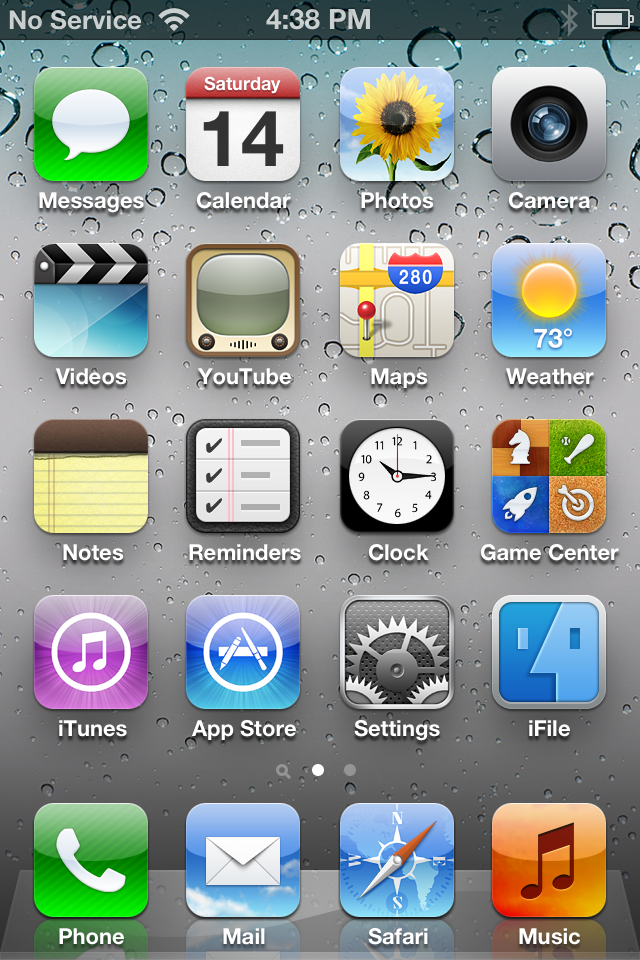
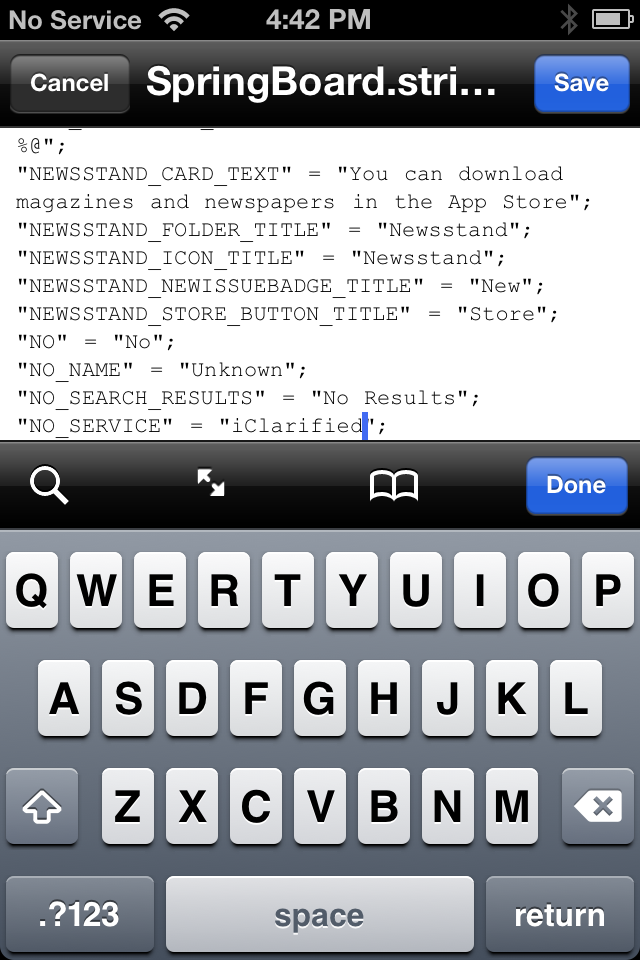
You may want to follow these instructions if you want to customize your SpringBoard. For example, you can change the status bar message 'No Service' to a string of your choice.

Step One
You will need to have jailbroken your device and installed iFile from Cydia.

Step Two
Launch iFile by tapping its icon on your SpringBoard.


Step Three
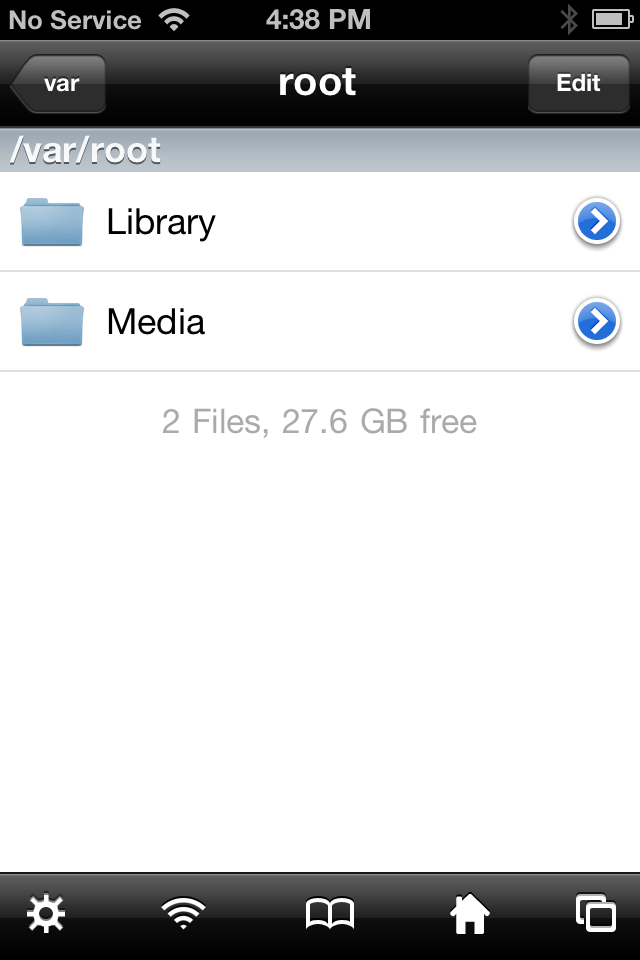
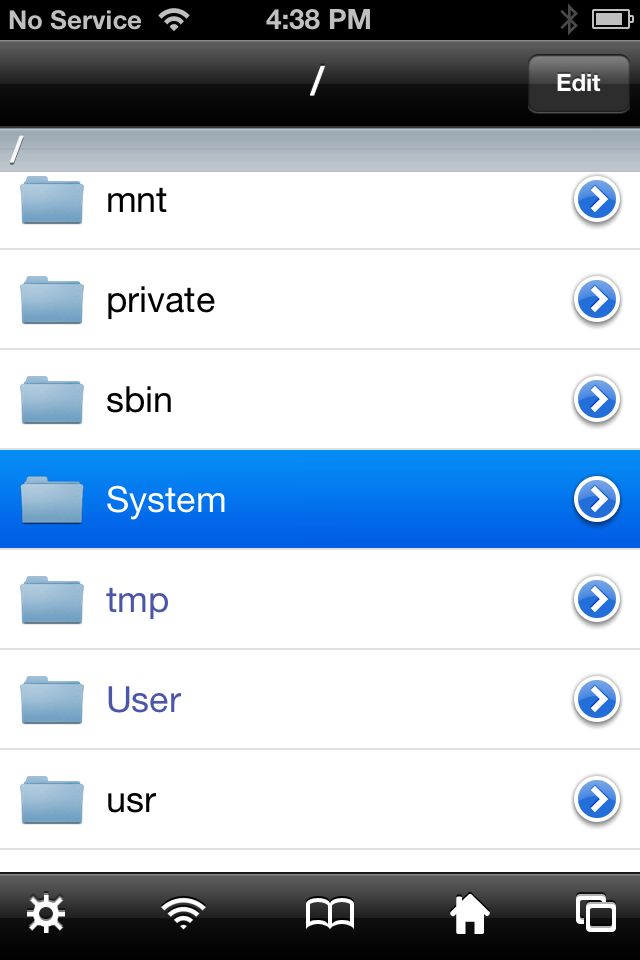
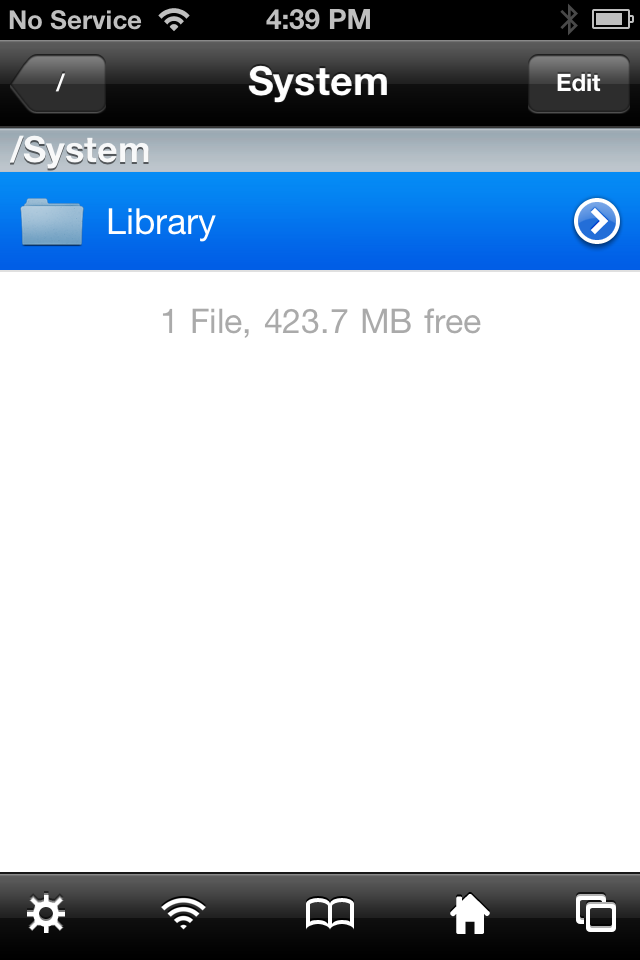
Press the back button until you get to the root directory of your device, then select System from the list of folders.


Step Four
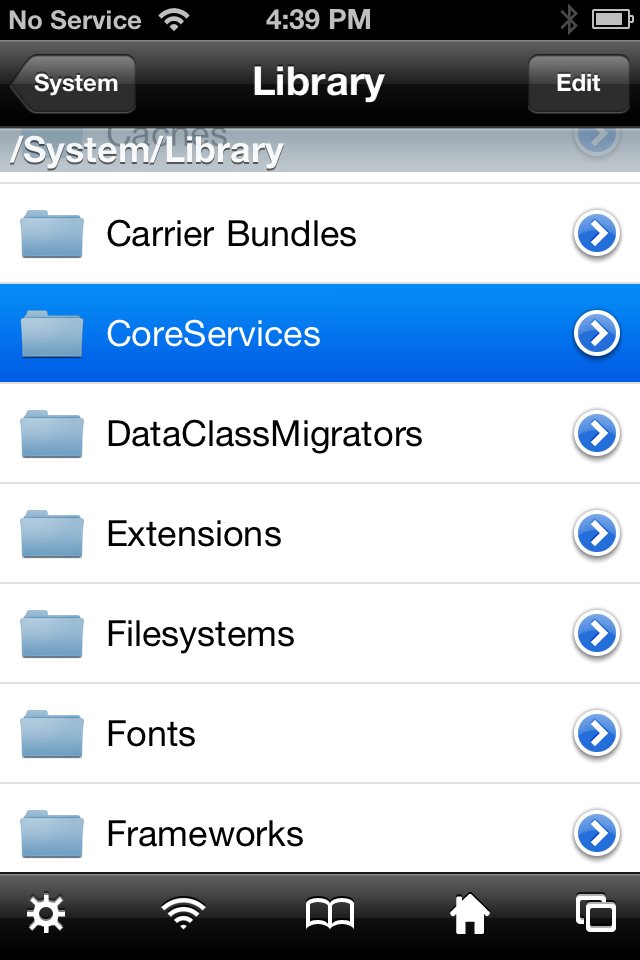
Press to select the Library folder then tap to select the CoreServices folder.


Step Five
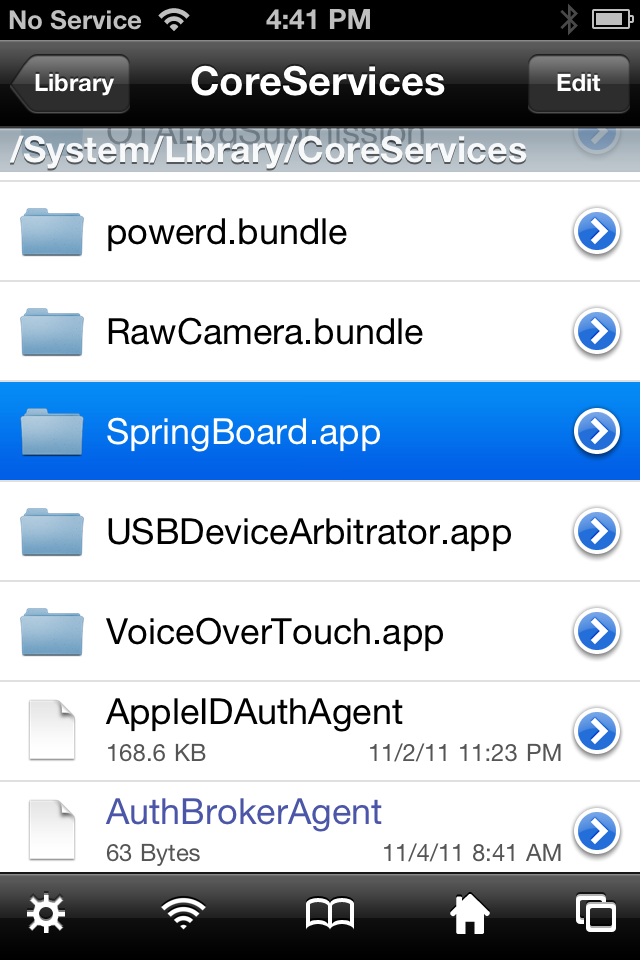
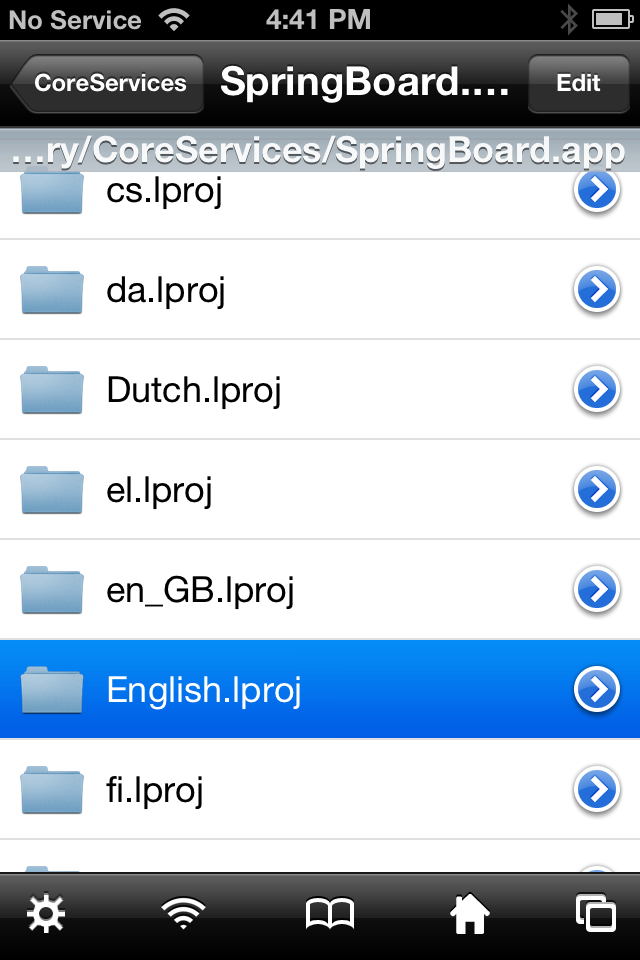
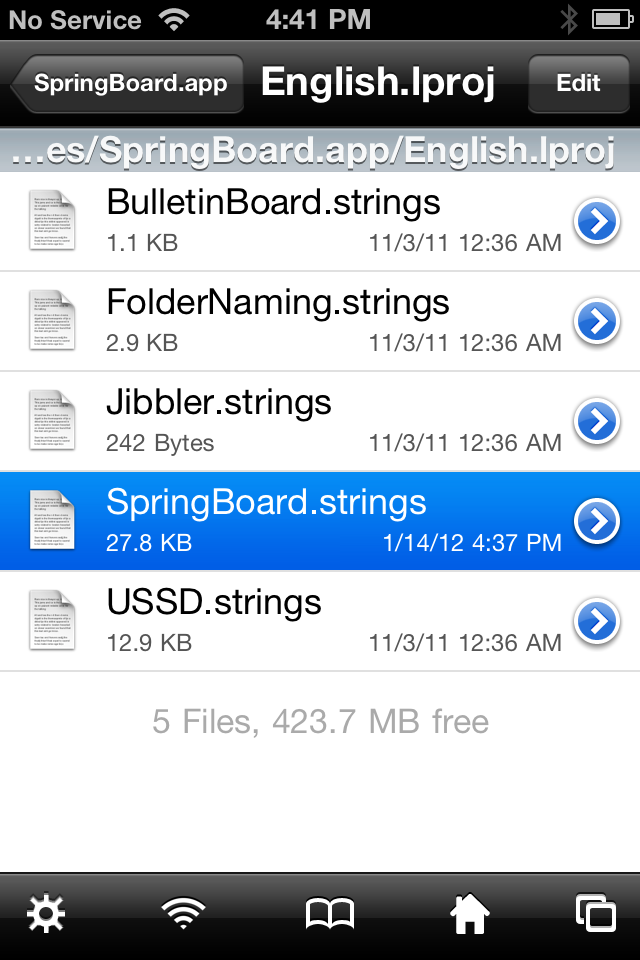
Tap to choose the SpringBoard.app folder then press to select the English.lproj folder.


Step Six
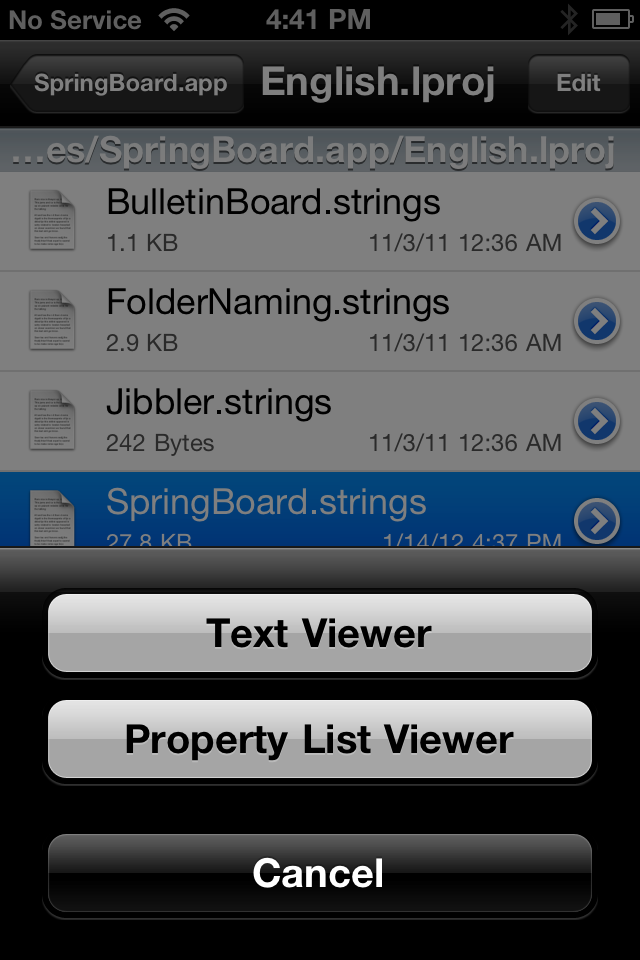
Press to select SpringBoard.strings then choose Text Viewer from the popup menu that appears.


Step Seven
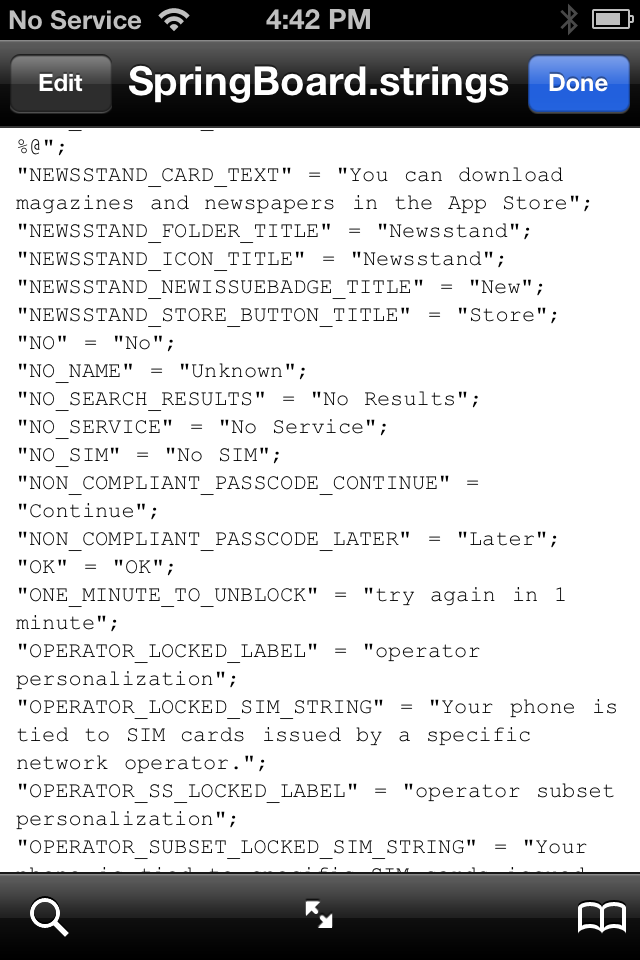
Navigate to the string you would like to customize then click the Edit button at the top left of the screen.


Step Eight
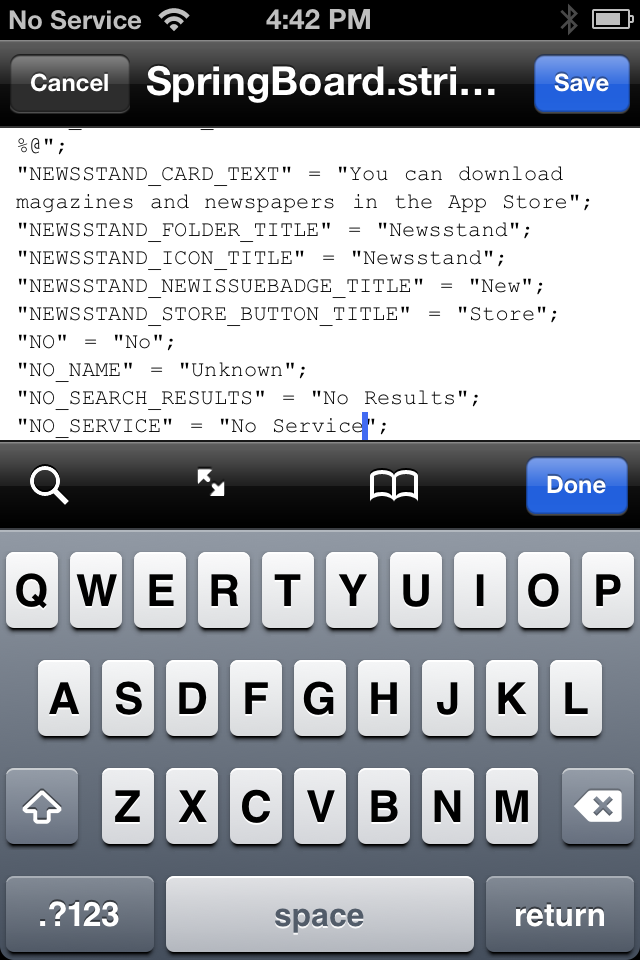
Change the value of the string variable to your liking then click the Save button.


Step Nine
You can now reboot your device for the changes to take effect!


Note: If you want to change the word to anything such as pop up message, just repeat the Step 7 again!
Be Aware: We are not respond on any circumstance!


You can like our Facebook page , add us to your circle on Google+ or follow us on Twitter to keep yourself updated on all the latest from any gadget product!

Thursday, June 14, 2012

Install iOS 6 Beta 1 Without Developer Account

How to install iOS 6 beta 1 without UDID / without developer account on iPhone 4S, 4, iPad 3, 2, iPod touch 4G and iPod touch 3G? Well, some guys catch a hole that will allow you to install iOS 6 beta 1 without registered UDID (without developer account) in a few simple steps.
install ios 6 beta 1 without developer account
But, before installing, you have to know that iOS 6 still in beta version which means that it’s buggy and may contain errors. Moreover, there is now jailbreak available for iOS 6 so far.

Before Upgrading to iOS 6 beta 1 – Here’s the supported devices :
  • iPhone 4S
  • iPhone 4
  • iPhone 3GS
  • iPad 3 (The New iPad)
  • iPad 2
  • iPod Touch 4G
  • iPod Touch 3G

How to install iOS 6 beta 1 on iPhone, iPad or iTouch without UDID (without Developer account):

Requirements:
Step 1: Connect your iPhone into your computer via USB and iTunes hold (Alt in Mac) (Shift in Windows) and click on the ‘restore’ button then point it to iOS 5.1.1 you download above. Wait for between 10 and 15 minutes for the new OS to be moved over.
Step 2: Make sure that you resorted your iDevice as a New Device
Step 3: Once resorted, press Shift+Left click on “Check for Update” button, then point iTunes to the download iOS 6 beta 1. Wait for between 10 and 15 minutes until finishing installation. Congratulations.

How to install iOS 6 beta 1 Without developer Account (Without UDID) [Video]:


Please Leave Comment To Let's Us Know How it works!


You can like our Facebook page , add us to your circle on Google+ or follow us on Twitter to keep yourself updated on all the latest from any gadget product!

iOS 5.1.1 Download Link

Download iOS 5.1.1:

iPhone:
5.1.1 (3GS): iPhone2,1_5.1.1_9B206_Restore.ipsw
5.1.1 (4 GSM): iPhone3,1_5.1.1_9B206_Restore.ipsw
5.1.1 (4 CDMA): iPhone3,3_5.1.1_9B206_Restore.ipsw
5.1.1 (4S): iPhone4,1_5.1.1_9B206_Restore.ipsw
iPad:
5.1.1 (iPad 1): iPad1,1_5.1.1_9B206_Restore.ipsw
5.1.1 (iPad 2 Wi-Fi): iPad2,1_5.1.1_9B206_Restore.ipsw
5.1.1 (iPad 2 GSM): iPad2,2_5.1.1_9B206_Restore.ipsw
5.1.1 (iPad 2 CDMA): iPad2,3_5.1.1_9B206_Restore.ipsw
5.1.1 (iPad 2 New): iPad2,4_5.1.1_9B206_Restore.ipsw
5.1.1 (iPad 3 Wi-Fi): iPad3,1_5.1.1_9B206_Restore.ipsw
5.1.1 (iPad 3 GSM): iPad3,2_5.1.1_9B206_Restore.ipsw
5.1.1 (iPad 3 CDMA): iPad3,3_5.1.1_9B206_Restore.ipsw
iPod Touch:
5.1.1 (3G): iPod3,1_5.1.1_9B206_Restore.ipsw
5.1.1 (4G): iPod4,1_5.1.1_9B206_Restore.ipsw

You can like our Facebook page , add us to your circle on Google+ or follow us on Twitter to keep yourself updated on all the latest from any gadget product!
Tuesday, June 12, 2012

Six Dissapointed Things Of iOS 6


Yes, iOS 6 looks pretty new and shiny right now, but don’t think for a second that it’s perfect. There are some key points that could leave a lot of iOS users unhappy with the update if they don't put some time and consideration into leaving iOS 5 for the beta.

1. No Jailbreak
Probably the biggest one: iOS 6 doesn’t have a jailbreak yet. If you plan on upgrading, you can kiss your jailbreak goodbye until you either downgrade back to iOS 5, or until a tethered or untethered jailbreak tool is released. It is likely that a tethered jailbreak will be released for A4 devices on iOS 6 beta, however many jailbreak tweaks and Cydia included probably aren’t stable enough to run on the new operating system just yet.


2. App Store App Compatibility Could Take A While
Some App Store applications could work as expected, but some may try to perform their functions and just crash in iOS 6. Many applications will have to be updated to work with iOS 6’s new features, such as Facebook integration. There are many things in iOS 6 that are not the same as in iOS 4 and iOS 5 that could cause an application to be unstable. It is recommended that you only download applications that have been confirmed to work on iOS 6 to avoid issues that could cause inconveniences.


3. No Original iPad Support
The original iPad is not supported by iOS 6. This is extremely unfortunate, and also very odd, since the iPad has an A4 processor like the iPhone 4 and iPod touch 4G. Yet, the iPhone 3GS, with its outdated processor, still gets the iOS 6 upgrade. Orginal iPad owners will be stuck on iOS 5, unfortunately. The original iPad sold very well, so it puts a good fraction of people at a loss.


4. No Siri On iPhone 3GS/iPhone 4/iPod touch 4G/iPad 2
We all wanted Apple to open up Siri capability on all devices. Spire helped prove that all of the iOS 5 devices were capable of running the virtual assistant. She is both fun to play with as she is useful for giving directions and fetching answers to math problems. While Apple was generous enough to bring Siri to the new iPad, there is no technical reason that they couldn’t have brought her to at least the iPad 2 and iPhone 4.


5. Flyover And Turn-By-Turn Navigation For Limited Devices
This is probably one of the coolest features that iOS 6 will be bringing to the table; the ability to see cities up from above in high definition view, and the ability to turn your Maps application into a fully-functional GPS application that can guide you to your destination with voice as you move forward. Unfortunately, Apple has decided to bottleneck these features to only the iPad 2, the new iPad, and the iPhone 4S. It's probably understandable, considering that these 3-D views demand a bunch of processor and graphics-hungry functions, however it's likely that the iPhone 4 would be capable of rendering them just fine. Unfortunately, if you still use an iPhone 4 (or even an iPhone 3GS), you cannot use turn-by-turn navigation.


6. Passbook Adds Another Potentially Useless App Icon
If you weren’t a fan of Newsstand in iOS 5, then you probably hid Newsstand from your home screen with a jailbreak tweak like Springtomize 2. Unfortunately, iOS 6 comes with yet another application icon that not too many people are likely going to use. Not everyone likes to associate his or her easy-to-lose iPhone with money and important information. With Passbook, you can use your iPhone to manage your gift cards or airplane tickets. Apple should have known that not every iPhone owner rides airplanes or manages gift cards every single day.

You can like our Facebook page , add us to your circle on Google+ or follow us on Twitter to keep yourself updated on all the latest from any gadget product!
Thursday, March 8, 2012

iOS 5.1 For iPhone 4S, 4, 3GS, iPad And iPod touch [Direct Links]

Unlike the apparent panic displayed by Apple in the run-up to the original iOS 5 release, which saw an near-unprecedented number of betas seeded to members of the fruit company’s developer program, there have been comparatively few reports of what is to be expected with its first major revision – iOS 5.1.
Then again, with the 5.0.1 jailbreak talk having quickly transcended into third-generation iPad fanaticism, it’s hardly a surprise. Although there have been a few beta of versions of iOS 5.1 floating about, it was still unclear as to when it would actually be released. That was, of course, until the media event was announced, and today, in front of those present at the rather ceremonious congregation of press, shareholders and suits, Apple has released the final version of iOS 5.1 for the iPhone, iPad and iPod Touch.
iOS 5.1
Although the iPhone 4 Antennagate scandal is often regarded as Apple’s biggest ‘fail’ in the smartphone and tablet market, the iPhone 4S battery issues this time around were enough to mark the otherwise smooth release of iOS 5.x. Said battery problems should now enter folklore.
With a new update to iOS comes the inevitability of yet another cat and mouse chase with the jailbreak scene. The first iOS 5 jailbreak took just over two months to be completed, allowing those running A4 devices to enjoy an early New Year’s present in December. Midway through January, though, the so-called jailbreak "Dream Team" – headed by the Chronic Dev-Team – produced the perfect tonic (specifically, Absinthe) to those waiting on tenterhooks with their A5 devices.
Let’s hope the developers still pose the nous and determination to crack Apple’s latest security barrier in iOS 5.1; they’ve certainly got our backing!
Official change-log:
- Japanese language support for Siri (availability may be limited during initial rollout)
- Photos can now be deleted from Photo Stream
- Camera shortcut now always visible on Lock Screen for iPhone 4S, iPhone 4, iPhone 3GS and iPod touch (4th generation)
- Camera face detection now highlights all detected faces
- Redesigned Camera app for iPad
- Genius Mixes and Genius playlists for iTune Match subscribers
- Audio for TV programs and films on iPad optimized to sound louder and clearer
- Podcast controls for playback speed and a 30-second rewind for iPad
- Addresses bugs affecting battery life
- Fixes and issue that occasionally caused audio to drop for outgoing calls
Here are the official download links to iOS 5.1 directly from Apple:
This new iOS update is also offered as over-the-air (OTA) for those of you who already running iOS 5.x.x. Accessing the update feature is as easy as heading into Settings > General > Software Update and following the on-screen instructions, as shown in the screenshot below.
iOS 5


You can like our Facebook page , add us to your circle on Google+ or follow us on Twitter to keep yourself updated on all the latest from any gadget product!
Saturday, February 18, 2012

Create Custom Zeppelin Logos [Jailbreak Tweak]

How customize your carrier logo with new Cydia tweak called Zeppelin on your device. Today we bring to you a full guide showing you how to create custom Zeppelin logos simply and correctly! But only for a new custom logos you want to put it in Zeppelin, first make sure you have installed Zeppelin Tweak from Cydia.

Zepelin logo

Here’s the simply and easiest steps to create your custom Zeppelin logos:

Step 1: you must be download DiskAid or iFunbox program for your mac or pc, and connect your device.
Zeppelin logo
Step 2: Go to root partition from file system and go to /Library/Zeppelin/.
Zeppelin logo

Step 3: Search for a good icon size or resize your icon (i have pixels 50×50) and make six copies for your image icon and be sure the extension PNG.
Zeppelin logo
Step 4: Rename your images icon as we showing you in our guide photo.
Zeppelin logo
Step 5: Put your images in a new folder, rename it and drag and drop it to Zeppelin.
Zeppelin logo

Finally refresh and you will be done, you can choice your custom logo in Zeppelin, ENGOY


Now you can find this tweak in Cydia and it is completely free!

You can like our Facebook page , add us to your circle on Google+ or follow us on Twitter to keep yourself updated on all the latest from any gadget product!
Thursday, February 16, 2012

How To Get Siri Working On Non-iPhone 4S Devices Without Proxy Servera

Siri has always been one of those things that has sprung up in the jailbreak community. If you don’t have it but want it, there are many ways to go about achieving this. You can either buy a server and let the sellers do all the work to keep the servers fast and reliable. Or, you can do it yourself. And that’s exactly what we are going to show you today.

If you have a friend or a family member with an iPhone 4S that is jailbroken, you can get Siri on your non-iPhone 4S device. All you need to do is follow this tutorial/video and you will have Siri on your device.
  1. Make sure you install the tweak AssistantConnect4S on the iPhone 4S and as for the non-4S device, install AssistantConnect.
  2. Open AssistantConnect4S on the 4S device, then use Siri (you can say anything) then close Siri and choose the “Email Siri Data” option and email it to yourself or to your friend with the non-4S.
  3. Open the email on the non-4S device and tap on the attachment. Open it in AssistantConnect.
  4. If you’re on the non-4S end of this tutorial, you’ll need to disable a few things with Spire. Get SBSettings and tap on “more”. Then navigate to “Mobile Substrate Addons” and disable “SpireHooks” and “SpireInjector”. Go to the homescreen and the device should respring.
  5. And you should now have connectivity! Enjoy!
 If you are having issues, feel free to watch this video!


You can like our Facebook page , add us to your circle on Google+ or follow us on Twitter to keep yourself updated on all the latest from any gadget product!
Sunday, February 12, 2012

Send Files From Your iPhone To Any Device Via Bluetooth Using AirBlue For iOS 5

One of the things we often take for granted from our mobile devices is the ability to quickly transfer files between any Bluetooth-capable devices. iOS doesn’t really play ball, though, leaving iPhone users to look for other means to share audio, video, and image files.
There have been a few attempts from Cydia purporting to allow Bluetooth file sharing, namely Celeste, which released last year. Unfortunately, not only did it not actually work particularly well, but it was limited to iOS devices only. What happened to universal sharing by default?
Well, enter AirBlue Sharing; the answer to the prayers of those looking to share files with local devices. Unlike Cesleste and the other solutions available, it gives you back your freedom by allowing you to send/receive from any Bluetooth device – even Android.
bluetooth_logo
Compatible with devices running iOS 4.2 through iOS 5.0.1, this great tweak requires no configuration whatsoever, and offers high speed Bluetooth transmission of up to 1.7 MB/s. It leaves no stone unturned in its quest for total sharing, allowing you to send directly from Notes, Photos, Videos, Music, Contacts or Voice Memos if you so choose.
Here are a couple of video of this great tweak in action:


The cost? Well, it comes in at a rather hefty $4.99, and is available in Cydia as we speak. Then again, it works well, and is probably the best solution for Bluetooth sharing.
bluedobex1
If you fancy giving AirBlue Sharing a go, head over to the BigBoss repository – a default in your list of Cydia sources unless you’ve opted to delete it – and make your purchase.
We’re loving it here at Redmond Pie, and cannot recommend it enough!
You will obviously need to jailbreak your device to install this tweak.

You can like our Facebook page , add us to your circle on Google+ or follow us on Twitter to keep yourself updated on all the latest from any gadget product!
Friday, February 10, 2012

Use Siri On iPhone 4 / iPad 2 Without Proxy Server With Sara (Jailbreak Tweak)

If still anyone of you wants Siri alternative for the old generation devices like iPhone 4, and iPad 2 without messing with any operating system and your home or business local networks to make anything working, then for surely you will like the new best alternative to Siri called Sara. We know there are already coupled of tweaks and services available in Cydia to bring Siri on your iPhone, iPad, such as Spire by the Chpwn. Spire is quite good, and works awesome if you have set up it properly but the installation of Spire on the local network is just out of mind for the simple skills having users and for those who have not ever heard the name of operating systems carrying the roots of Linux.

Many people argued around the social websites that they haven’t able to make Spire work on the local network and wants something ready to use services for their Spire installation on the device. However, here comes the Sara, after the development of months and testing it is finally available in the Cydia Store for free of cost, with aim to bring the Siri UI and much more working service on your device. Sara is available in the Cydia Store for free of cost, and it also works on iPad without playing any advanced settings on your device core. Sara is an alternative application, which adds a quick icon to your device dashboard, and allows you to run on your device with a single tap.

Sara also has the good-looking Siri user interface and much quick clean out of the interface than the Siri itself; the tweak is come up with coupled of great features and without any limitations on your device. Sara is appeared to beating Siri on the location-based services, as the Sara allows you to expand the location-based searches, and it won’t limit its services to the United States and Canada. In addition to this, Sara also has an ability to control your PC, switch couple of phone toggles, search for songs, built-in barcode reader, and even learns from its mistakes. The main and most useful feature of the Sara is you don’t need to set up any proxies to make it work on your device.
Sara The Siri Alternative

Sara is available on this repo “http://isoftjsc.com”, you can simply download it on your device without any hustle. Simply add this repo in your Cydia sources and search for “Sara 0.2” on your Cydia Store.


You can like our Facebook page , add us to your circle on Google+ or follow us on Twitter to keep yourself updated on all the latest from any gadget product!
Wednesday, February 8, 2012

Jepit Bring You Cool App Switching Effect (Jailbreak Tweak)

iOS has always had it’s smooth ways with navigating the UI. But it gets old for some people and they want a change. If that’s you, then we have the perfect tweak! It’s called Jepit and it adds a few really nice animations you can choose from for app switching. Not only that, but you can increase the speed of app switching as well.


From the first image, you can see all of the animation options. There’s quite a few to choose from and many of them look really cool. The whole interface of this tweak isn’t done very well. There’s lots of errors and hopefully the developer will get them worked out. Such as vertical and horizontal animations being switched up and the word “Horizontal” being spelled wrong. Other than that, this tweak works great! Just remember until there’s an update, horizontal is actually vertical and vise versa.
Additionally, you can change the speed of the animation as shown with the image to the right. Make sure you enable it and then set the speed in which you like best. Test them out first and make sure it’s the right one for you and the animation. Take into account that the “fade” option isn’t affected by the speed. You won’t see any change so just test them out.
Overall this tweaks functionality works like a charm, but the UI needs a bit of an upgrade. With this tweak being $1.59 in Cydia, do you think it’s worth it? All you need to do is to jailbreak your iOS device. You can use our guide posted here to jailbreak all A4 devices on iOS 5.0.1 and our guide posted here for A5 devices, i.e. the iPhone 4S and iPad 2. 

Note: We are IMeNu not recomment you to use it right due to many bugs from this tweak!


You can like our Facebook page , add us to your circle on Google+ or follow us on Twitter to keep yourself updated on all the latest from any gadget product!
Tuesday, February 7, 2012

Shoot Videos and Take Photos at the Same Time with QuickPix

Have you ever shot a video on your iPhone then uploaded it to your computer just so you could grab a few screenshots from the video? Well, it’s now safe to say there’s an app for that, and it is called QuickPix.
QuickPix allows you to snap photos while capturing video. The photos are sent directly to your camera roll for easy access. But that’s not all…
The app includes features like RapidFire mode that allows you to take up to 14 photos per second, depending on your device, and QuickPic mode, which makes the app automatically capture a shot upon launching it.
With an average 4 start rating, QuickPix seems to be the way to go. You can pick up QuickPix in the App Store now on the iPhone 3GS, iPhone 4, iPhone 4S, and the iPad 2 for the price of $1.99.
If you decide to give it a try, please let us know what you think about QuickPix.


You can like our Facebook page , add us to your circle on Google+ or follow us on Twitter to keep yourself updated on all the latest from any gadget product!
Sunday, January 29, 2012

How To Update to iOS 5

Upgrading to iOS 5 is a easy task and you just need to connect your device to the PC and check for updates.If you are unsure on how to update your device to iOS 5 here are the simple steps to update to the latest OS from Apple.
How To Update to iOS 5 Through iTunes
Step 1: Connect your device to iTunes using the USB cable.
Step 2: Once iTunes has detected your device, click on the device name in the left hand menu and click on the “Check for Update” in the device description box.
download_ios5
Step 3: Apple will show you a popup message as seen above if an update for your device is available. Click on the “Download and Update” button.
Step 4: Apple will download the iOS 5 update and install it on your device. It is important that you DO NOT disconnect the device from the computer during the process. It is also recommended to keep your computer plugged in to the power outlet during the process.
That’s it. The process might take around 10-30 minutes depending on how long it takes to download the update to your computer and install it. Once iOS 5 is installed, iTunes will sync your device and you can use it again.
How To Update to iOS 5 Manually
In some cases, the iTunes update process might not work for you for several reasons. In those cases, you can also update your device to iOS 5 manually. Here are the steps to manually update your device to iOS 5.
Step 1: Download the iOS 5 IPSW file for your device using the iOS 5 IPSW direct download links.
Step 2: Connect your device to the computer using the USB cable and wait for iTunes to detect it.
Step 3: Once your device has been detected – follow the steps given below for different OS.
  • For Windows – Hold the Shift key and then click on the “Check for Update/Update” button.
  • For Mac OS X – Hold the Option key and then click on the “Check for Update/Update” button.
Step 4: In the next dialog browse to the file that you downloaded from Step 1 and select the IPSW file.
Step 5: iTunes will now use the IPSW file and update your device to iOS 5. The process should take around 10-20 minutes.
Troubleshooting
If you are receiving errors updating to the official iOS 5 firmware you can try these troubleshooting steps (Try them one at a time… not all at once):
Note: If you are receiving “An internal error occurred.” (3200 or 3004) this means Apple’s servers are to busy to deal with your restore request. Try again later.
  • Switch USB ports (try USB ports at the back of your computer if applicable).
  • Restart your computer or try an alternative computer.
  • Put your iPhone, iPod Touch or iPad into DFU mode.
  • Download TinyUmbrella , launch it, go into the advanced tab, disable Set Hosts To Cydia, and start TSS server.
I hope this has helped people update to the iOS 5 firmware. I have tried to cover everything possible. If you still need help, however, please leave your questions in the comments section below

You can like our Facebook page , add us to your circle on Google+ or follow us on Twitter to keep yourself updated on all the latest from any gadget product!
Monday, January 23, 2012

Khmer Font For iOS 5.0/5.0.1 (.DEB)

 Here is the link to download Khmer Font for iDevice:

Khmer Font For: iPhone/iPod/iPad

KeyBoard For : iPhone/iPod

KeyBoard For : iPad

Note: Font must install first then keyboard!

Click Here to know more about how to install .deb into your iDevice!

Update:  New version is out 1.0.2

Here is Khmer Font for: iPhone

             Khmer Keyboard: iPhone

You can like our Facebook page , add us to your circle on Google+ or follow us on Twitter to keep yourself updated on all the latest from any gadget product!
Saturday, January 14, 2012

How to Enable AutoCorrect Bar on iPhone, iPad, iPod Touch

This feature works through creating a bar on the top of the keyboard screen that shows you different corrected options for the words that you are writing in your text and these words comes down alphabetically for you to choose the right option.

The devices that are supported by Autocorrect bar:

  • iPhone 4S
  • iPhone 4
  • iPod touch 4
  • iPad 1
  • iPad 2

enable autocorrect bar 

How to Enable Autocorrect bar on iPhone, iPad, iPod Touch?

  • Step1- Connect the idevice that you have to the itunes and make a backup
  • Step2- Download the application for the backup “ibackupBot- windows and mac” and install it on your computer
  • Step3- Now comes the step where you choose your idevice from the list that appears on the left hand panel in the backup app
  • Step4- Navigate to library/preferences/com.apple.keyboard.plist and then double click on the file to open
  • Step5- Add the following key<key>keyboardautocorrectionlists</key> <string>YES</string>
  • Step6- Close this file and then save it
  • Step7- Now click on the restore icon in order to restore the backup file
  • Step8- Your idevice now is going to restart.
Now you have your autocorrect bar enabled


You can like our Facebook page , add us to your circle on Google+ or follow us on Twitter to keep yourself updated on all the latest from any gadget product!
Tuesday, December 27, 2011

HOW TO JAILBREAK 5.0.1 UNTETHERED WITHOUT BASEBAND UPDATE

You can quickly access, download & install Corona 5.0.1 Untether (Chronic Dev team’s version, packaged in the Cydia store) for your iPhone 4, iPhone 4 (CDMA), iPhone 3GS, iPad 1, iPod Touch 4G & iPod Touch 3G *CURRENTLY RUNNING iOS 5.0.1* by following the steps below:

Open the Cydia app on your tethered jailbroken device**
Search for “Corona”
Hit the “Install” button (as shown in the screen grab below)

This package will allow your 5.0.1 device to install pod2g’s untethered exploits and reboot without requiring an external tool like redsn0w or sn0wbreeze, and without having to restore your device (so you get to keep all your apps, contacts, etc).
**Note: if you do not currently have access to the Cydia store on your 5.0.1 device, you can use the redsn0w 0.9.10 tool developed by the iPhone Dev team. It is exactly the same set of files as our Cydia package, but bundled with redsn0w for new jailbreak users and/or those who are not already running a tethered jailbreak:
Important Note: iPhone users, if you rely on unlock you MUST stay away from iOS 5.0.1 update, it will break your unlock as it will upgrade your iPhone baseband to one that can’t be unlocked. Dev-team will release Redsn0w 0.9.9 to let unlockers able to upgrade to iOS 5 with preserving the unlockable basebands.
Jailbreak iOS 5.0.1 – Supported devices :
iPod touch 3G
iPod touch 4G
iPad 1
iPhone3GS
iPhone4 (GSM)
iPhone4 (CDMA)
iPhone 4S – ?
iPad 2 – ?

Jailbreak iOS 5.0.1 – iPhone 4, 3GS,iPod Touch 4G, 3G, iPad [Tutorial] :

HOW TO JAILBREAK 5.0.1 iPHONE 3GS UNTETHERED COMPLETE GUIDE:
1) Open RedSn0w tool and click “Extras” (Scroll down for link)
20111227-173837.jpg
2) Click “Custom IPSW”

JAILBREAK 5.0,5.1 iPHONE 3GS UNTETHERED COMPLETE GUIDE
3) Select original iOS 5.0.1 and click “Open”
JAILBREAK 5.0,5.1 iPHONE 3GS UNTETHERED COMPLETE GUIDE
4) Waiting ……
JAILBREAK 5.0,5.1 iPHONE 3GS UNTETHERED COMPLETE GUIDE
5) OK. Custom IPSW created
20111108-173334.jpg
6) Click “Pwned DFU”
JAILBREAK 5.0,5.1 iPHONE 3GS UNTETHERED COMPLETE GUIDE
7) Click “Next” and read information
JAILBREAK 5.0,5.1 iPHONE 3GS UNTETHERED COMPLETE GUIDE
8) OK. Your device should now be in owned DFU mode…
JAILBREAK 5.0,5.1 iPHONE 3GS UNTETHERED COMPLETE GUIDE
9) Connect iPhone 3GS with iTUNES and click “OK”
JAILBREAK 5.0,5.1 iPHONE 3GS UNTETHERED COMPLETE GUIDE
10) ATTENTION. Click “ALT +Restore” ( Mac OS X) or “CTRL + Restore” ( Windows PC)
JAILBREAK 5.0,5.1 iPHONE 3GS UNTETHERED COMPLETE GUIDE
11) Select Custom IPSW (file “NO_BB……..” )
JAILBREAK 5.0,5.1 iPHONE 3GS UNTETHERED COMPLETE GUIDE
12) Click “Restore”
JAILBREAK 5.0,5.1 iPHONE 3GS UNTETHERED COMPLETE GUIDE
13) Waiting….
JAILBREAK 5.0,5.1 iPHONE 3GS UNTETHERED COMPLETE GUIDE
14) Waiting…. and Done.
Windows LINK
Mac LINK
… Jailbreak iOS 5 on iPhone 4, 3GS, iPod Touch 4G, 3G and iPad
If you have one of the A4 devices listed above and are not using iOS 5.0.1 yet, you can update your iOS version now (though you should not update to 5.0.2 when it is released, or you will lose your jailbreak) or you can wait a few days max for our Corona 5.0 Untether package, which will be available in the Cydia store upon release.
Apologies to those of you iPad 2 & iPhone 4S users who are waiting for an A5 jailbreak; we all (pod2g + everyone here at Chronic Dev) are still working feverishly ‘round the clock to get an untethered jailbreak into your hands as well, just as soon as we possibly can.


You can like our Facebook page , add us to your circle on Google+ or follow us on Twitter to keep yourself updated on all the latest from any gadget product!
Sunday, December 18, 2011

How To Create A Custom Firmware For iPad 2 & iPhone 4 To Downgrade At iOS 4.3.3 With TinyCFW Alpha

As you know that folks around have updated to iOS 5 and are no more able to downgrade due to certain reasons such as no SHSH blobs and one of the main epic reason is that Apple is no more signing iOS 4.3.3 and you are not able to downgrade so for that @notcom a.k.a Semaphore the developers of the famous SHSH blobs saver, TinyUmbrella today released a new tool in the market named TinyCFW Alpha to downgrade. He basically created this for his friend but made it public.

The following text is from his blog post

TinyCFW: Create a custom IPSW for iPad2 and iPhone4

TinyCFW is a simple tool I put together for a friend of mine. He has an iPad2 GSM and has his 4.3.3 SHSH but since Apple is no longer signing 4.3.3, it isn’t possible to downgrade to 4.3.3 without getting stuck in a 1015 recovery loop.What TinyCFW is:
  • It will modify an existing ipsw for an ipad2 gsm/cdma or iphone4 gsm/cdma
  • It WILL modify the ipsw TO UPDATE YOUR BASEBAND TO THE LATEST!
  • It will create an ipsw that you can use with TinyUmbrella AND iTunes to restore to a version of iOS that you have SHSHs for.
  • It is primarily for iPad2 with a baseband OR iPhone 4.
What TinyCFW is NOT:
  • A jailbreak
  • An unlock
  • A tool to protect your baseband.
  • A tool that will restore your device to any firmware
  • A tool for use with iPhone 3GS, iPhone 3G, iPad, or iPhone 4S
The usage is simple. Start the application (double click on the jar or run the .exe file). You must have java and at least 2.5gb ram. (Yes I know. It’s a lot. Get over it. I didn’t write this to be massively distributed. I wrote this for a friend and am now just sharing it with everyone). Once the window comes up, click the top button and choose an ipsw for which you have SHSHs for. The app will scan it and tell you the firmware and baseband versions in the ipsw you selected and the firmware and baseband versions that will be in the target ipsw when you click the second button. If you’re ready, click ‘Save Target IPSW’. This will take a minute or two and when it is finished, you will have a file named:
<your original ipsw name>.bbupdate.ipsw.
You can use this ipsw with iTunes and TinyUmbrella to restore your iPad2 GSM/CDMA back to say 4.3.3 (if you have 4.3.3 SHSH).
This is a VERY initial release. I never intended on it being a massively supported tool. It’s just something I used in passing. If it helps you great! This functionality will exist in far more robust form when I finally ever release TinyPwn.
Enjoy!
Well folks its in beta stages for sure and is working for some and not for some and will give the following error

Download TinyCFW Alpha for Windows from here.
Update 1: @notcom has updated about the above error in his latest tweet
Update 2: For the folks for whom it was not working due to the above issue, we have got you the way out. Follow the steps below
Go to
  • Start                     }
  • Control Panel   } go to the properties of my computer by right clicking the My Computer logo on the desktop
  • System                }
  • Advanced System Settings (Placed at right)
  • A new windows will open where you will see Environment variables
  • There click “Add” and add the followings
  • Variable Name: _JAVA_OPTIONS
  • Value Of Variable: -Xmx1g


You can like our Facebook page , add us to your circle on Google+ or follow us on Twitter to keep yourself updated on all the latest from any gadget product!